


The Recycle Bin for Tableau is an overdue feature with some notable caveats…
What is the Recycle Bin on Tableau Cloud/Server?
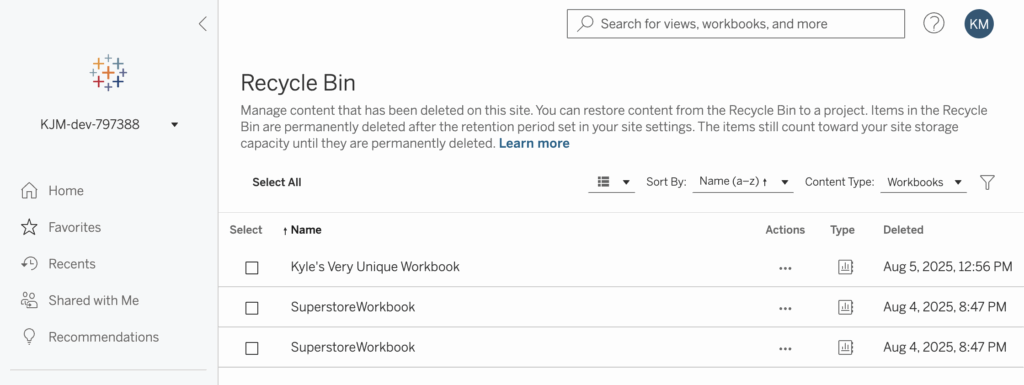
Introduced in version 2025.1, the Recycle Bin in Tableau brings familiar functionality from many applications and operating systems – when you delete something like a Workbook, Datasource or Project, it moves into a ‘holding space’ where it can be safely restored for 30 days. This may not be groundbreaking, but it is certainly a welcome addition for those inevitable moments where things are deleted unintentionally.
Despite being a potential derrièr-saver, there are some important ripple effects of how Recycle Bin works. I’ll walk you through them and how to avoid or resolve any unfortunate side effects!
There’s an Existing ‘Problem’ We Need to Talk About

Before diving into the specifics of the Recycle Bin’s impacts, it’s important to discuss how Tableau handles content (Workbooks, Views, Datasources, etc.) with identical names when forming connection strings and URLs.
First and foremost, the following applies at the Site level – which is the highest degree delineation for Tableau Server/Cloud. If you content shares names across different Sites, you won’t be affected as described – but I encourage you to keep reading, especially since the limit on the number of Sites on Cloud is far more stringent than on-prem.
You probably already know that you cannot create multiple projects with the same name, on the same site. Similarly, you cannot create a Workbook or Datasource with the same name as an existing object of the same type within a project. Tableau doesn’t care at all though if you create these items in another project on the same site…
You might be asking yourself: “Ok, cool – but why does this matter?”
There are two main ‘side effects’ of the ability to duplicate names, which impact URLs and connection details:
- Unintended variations in URLs can break embedded experiences, bookmarks, and lead to user confusion.
- Unpredictable backend connection details can wreak havoc on automation—especially with automated deployments
Workbooks
Consider the following scenario as it relates to URLs:
- I have a project, Project 1, which contains a Workbook named Kyle’s Workbook
- This Workbook contains Views named View1, View2, and View3
- I will end up with View URLs that look like this:
- Workbook: …/Workbooks/1348408/views
- View1: …/views/KylesWorkbook/View1
- View2: …/views/KylesWorkbook/View2
- View3: …/views/KylesWorkbook/View3

So far, so good, right? The URLs align pretty much exactly with what I’d expect. But watch what happens when I do the following without changing anything about the existing project and content:
- Suppose I also have Project 2, and I publish a Workbook with the same name
- This Workbook contains identically-named Views (View1, View2, View3)
- All of a sudden, I end up with URLs that look like this:

So, what do we notice here?
Firstly, the URL to the Workbook remains unique because Tableau already forms it using an internal ID number vs. just its name. The same is not true of the URLs to my Views – which makes sense when we look closely, right? Since a single URL can’t resolve to two different places, Tableau adds a unique identifier to ensure clarity/uniqueness — at the cost of URL consistency
Of course, the likelihood that you or your users will end up in this scenario is positively correlated to the size of your user base; however, keep reading to see how the Recycle Bin may cause this to rear its head even sooner!
It’s also worth noting that if I were to delete/purge everything from Project 1 (including from the Recycle Bin), my Views in the Workbook in Project 2 would still contain these unique identifiers unless specific steps are taken. See below for how to address this.
Datasources
For Datasources, the problem is less obvious from a URL perspective. For example, if I have a Datasource named SuperstoreOrders in both of the projects listed above, my URLs will look like this:
- Project 1: …/Datasources/10506218/connections
- Project 2: …/Datasources/10506219/connections
Here we can see that there is no problem at all as it relates to URLs for published Datasources since – like the Workbook root addresses we saw before – they already contain a unique identifier.
If we examine the connection information inside Workbooks connected to these Datasources, a potential hiccup becomes apparent. The dbname value, which can be found in the Workbook’s XML, via the Metadata API or the Tableau Server postgres repo (on-prem only), looks like this:
Workbook connected to Datasource 1:

Workbook connected to Datasource 2:

See that underscore + unique identifier added to what we know as the Datasource’s name? That’s going to cause us some heartache in certain situations, such as automation/scripting that publishes content from one site (or server) to another – e.g. promoting content from a development environment into production. The UID that Tableau added to keep its ducks in a row is only known to the site where it originated. If we were to try to use the REST API to publish the second Workbook to a new site/server, we would encounter the following:
400011: Bad Request

There was a problem publishing the file ‘Workbook 1.twb’...com.tableausoftware.domain.exception.PublishingException: Datasource ‘SuperstoreOrders_17543548283110’ not found for Workbook ‘Workbook 1’
I want to be clear here that this is only a “problem” because it introduces an element of randomness when these scenarios occur. Tableau obviously needs to do something to resolve these ambiguities behind the scenes, otherwise naming content would have to be much more restrictive and content management at scale would suffer immensely.
How Recycle Bin Makes This ‘Worse’

So, why am I throwing shade at the Recycle Bin? (hint: I’m not, just raising awareness 😉)
We’ve already seen how repeated Workbook + View names and/or Datasource names change certain behaviors in Tableau. Prior to the release of the Recycle Bin, most of these situations could be avoided entirely by deleting the affected content and republishing. Additionally, we can ensure that Views and Datasources have very unique names that are unlikely to repeat anywhere else on our Site.
Now, consider the following real-world scenario:
- In a third Project (Project 3), I’ve published a new Workbook: Kyle’s Very Unique Workbook
- This contains Views named Sales 08052025 and Profit 08052025
- …/views/KylesVeryUniqueWorkbook/Sales08052025
- …/views/KylesVeryUniqueWorkbook/Profit08052025
- This contains Views named Sales 08052025 and Profit 08052025
- Many Users use these views and have them bookmarked
- The team discovers a major issue with some of the calculations used in the Views, and decides to delete the Workbook temporarily so no one uses bad data to make decisions
- In this case, the deleted Workbook is still sitting in the Recycle Bin, waiting to be restored if needed
- The team fixes the data issues and publishes the Workbook back into Project 3 with no changes to its name or the names of the Views….
- …Uh oh! We ended up with URLs like this instead:
- …/views/KylesVeryUniqueWorkbook_17544130469470/Sales08052025
- …/views/KylesVeryUniqueWorkbook_17544130469470/Profit08052025
Boom – broken bookmarks, and broken embeds.
The answer is more obvious than it might seem – the Recycle Bin also lives at the Site level, which means that deleting content no longer immediately purges it from the site. This makes sense. In order to have clean restore functionality, the Recycle Bin has to ensure that the URLs are still reserved even though the item has been sequestered and can no longer be accessed outside of the Recycle Bin page in the UI.
We’ll see a very similar effect on Published Datasources – and for the same reasons:
- UniqueDatasource2025 exists in Project 3
- The Datasource is deleted for any reason, and left to sit in the Recycle Bin
- A new/updated version of the Datasource is published into the same Project with the same name
- Workbooks connecting to the new copy of the Datasource will now have dbname values like ‘UniqueDatasource2025_175849302938476’ like we saw above
- And now I will have the same potential issues with automation, even though I didn’t actually create a duplicate
Not to worry though, there are things we can do to help avoid and mitigate these situations!
How to Avoid This?

Here are my top suggestions for avoiding these troubles entirely:
- Whenever possible, overwrite existing Workbooks and Datasources vs. deleting and then republishing with the same names
- If deleting is a must and you intend to replace them later, clear items out of the Recycle Bin before republishing
- As seen earlier in this post, there are times (especially in larger environments) where the unique ID issue happens without any involvement from the Recycle Bin – this is why unique naming conventions are key! Try things like the following
- Include the Project/Site name in Published Datasource names
- Prepend or append dates/version numbers to Workbooks or View names
- Include additional unique data like JIRA ticket #s, owner IDs, etc.
- The Recycle Bin can be disabled entirely at the site level. YMMV.
Help! I’ve Got a Case of the Unique IDs!

This can be a tricky situation to get out of once it has occurred, but generally you can resolve the issues outlined in this post with the following steps:
Workbooks
- If the issue was caused by another copy of the same item in the Recycle Bin:
- Remove any remaining copies from the Recycle Bin
- Republish the Workbook using the same name/View names
- Your URLs should return to their original state (i.e. without extra IDs)
- If the issue was caused by another active Workbook on your site with the same View names – you’re a bit more limited:
- Option #1: Delete both Workbooks and then republish the one you want to have simpler URLs first
- Conversely, leave the older Workbook in place, delete the newer one (with the extra IDs) and then republish it with an updated name/View names.
Datasources
The backend dbname value having an appended ID is a bit trickier – we need to ‘fix’ both the Datasource name conflict AND the connections in any Workbooks that connect to it
- Download the affected Datasource and any Workbooks that connect to it
- Republish the Datasource with a name that will be unique for the Site
- Follow the suggestions above for your best chance at success
- Once the Datasource has been re-published, open the affected Workbook(s) in Tableau Desktop
- You will likely receive an error that the Datasource cannot be found – that’s ok!
- Point the connection to your newly republished/renamed Datasource
- Re-publish your Workbook(s) to Tableau Server/Cloud – no need to rename the Workbook(s) unless they’re also having View URL issues
- Double-check the published Workbook’s connection dbname values via one of these methods:
- Download and open the Workbook .twb file in a text editor
- Use the Metadata API to query the values
- Use the Postgres repo database to query the connection strings (Tableau Server only)
Wrapping (Bagging?) It All Up…

The Recycle Bin brings a familiar ‘soft delete’ experience to Tableau, and will certainly help recover from countless “OMG why did I just do that?!” moments. But IMHO, it is not without shortcomings/potential pitfalls in its form as of this writing – especially at scale.
As a very new feature it’s certain to evolve with time and future releases. I have some immediate wishlist items:
- Programmatic access to content in Recycle Bin via REST API
- Full transparency: Our scale internally is such that we had no choice to disable until this is a reality
- Option to permanently delete content via automation
- Ability to skip the Recycle Bin on deletion (i.e., hard delete)
- Via UI and APIs
These wishlist features are especially important as content in the Recycle Bin still counts toward your site storage limits!
To reiterate once more: I am a Recycle Bin fan. It has its place and provides a much needed failsafe against unintended loss of content – but let’s be real: it can expose potential problems that many users would not have experienced before, and for larger user bases it may create a pile of headaches and support ticket for your #DataDevs. 🤓
Let me know about your experience with the Recycle Bin in Tableau, and whether you’ve ever been affected by these issues – pre- or post-Tableau 2025.1!